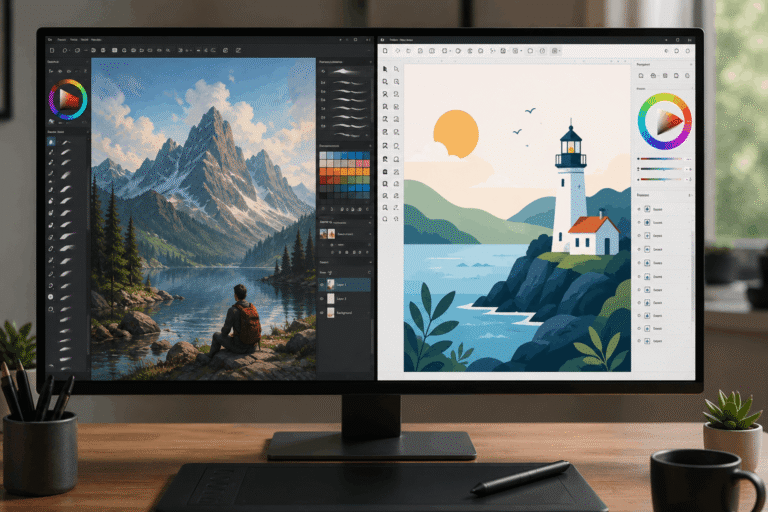
Best Photo Editing Software in 2026
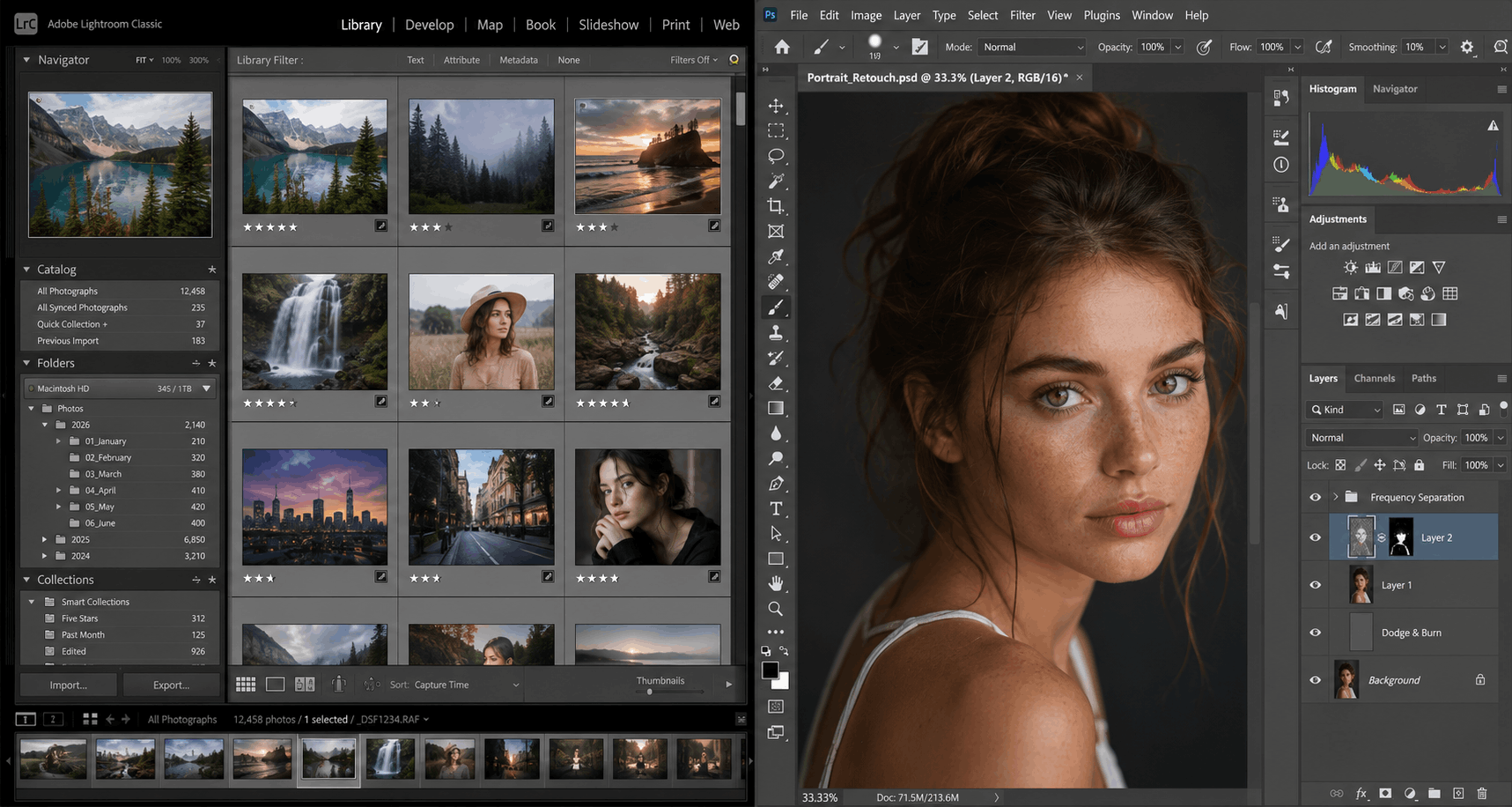
Photo editing software splits into two genuinely different categories that most guides blend together: tools built around RAW processing and photo organization and tools built for pixel-level editing and retouching. Picking the wrong category for your actual workflow is the most common mistake people make before they’ve even opened the software.
This guide covers the best photo editing software across both categories, along with subscription versus one-time-purchase pricing models and the hardware that actually affects performance.
Who this guide is for: photographers organizing and processing large RAW libraries, designers and hobbyists doing pixel-level retouching, and anyone comparing a paid subscription against free or one-time-purchase alternatives.
Last verified: July 2026.
Quick Answer
Adobe Lightroom is the strongest choice for RAW processing and photo organization for most photographers. Adobe Photoshop remains the most capable tool for detailed pixel editing and retouching. Affinity Photo is the strongest free alternative for pixel editing, with built-in RAW development for many photographers. Capture One and DxO PhotoLab are worth considering for specialized RAW workflows.
| If You Need… | Choose… |
| RAW editing | Lightroom |
| Detailed retouching | Photoshop |
| Free editing | Affinity Photo |
| Studio photography | Capture One |
| Mobile editing | Snapseed |
| Browser editing | Photopea |
How We Chose These Tools
Every tool here was evaluated against the same criteria, so the list reflects genuine capability rather than just brand recognition.
- Editing depth and RAW support
- Pricing model, whether subscription, one-time purchase, or free
- Workflow speed for organization and batch editing where relevant
- Platform coverage across desktop, web, and mobile
Which Software Should You Choose?
- Never edited photos before? Start with Adobe Lightroom.
- Shooting RAW and need a full workflow? Adobe Lightroom or Capture One.
- Doing detailed retouching or compositing? Adobe Photoshop.
- Want free, subscription-free editing? Affinity Photo.
- Editing in a browser without installing anything? Photopea.
- Editing on your phone? Snapseed.
- Prioritizing RAW image quality above all else? DxO PhotoLab.
RAW Processing Software vs. Pixel-Editing Software
This distinction matters more than most guides explain, and picking the wrong category for your needs leads to real frustration later.
RAW processing and organization tools (Lightroom, Capture One, DxO PhotoLab, and darktable) are built around non-destructive editing, meaning your original file is never directly altered, paired with library management for sorting and rating large photo collections. These tools excel at processing hundreds or thousands of images consistently.
Pixel-editing tools (Photoshop, Affinity, and GIMP) work directly on individual images for detailed retouching, compositing, and creative editing that RAW processors generally can’t do, like removing objects, combining multiple photos, or making precise local adjustments.
Many photographers end up using one tool from each category together, a RAW processor for the bulk of their editing and a pixel editor for the images that need deeper retouching.
Quick Comparison: Best Photo Editing Software
| Software | Type | Price Model | Best For |
| Adobe Lightroom | RAW processing, organization | Subscription | Photographers with large libraries |
| Adobe Photoshop | Pixel editing | Subscription | Detailed retouching and compositing |
| Affinity Photo | Pixel editing | Free | Subscription-free Photoshop alternative |
| Capture One | RAW processing, organization | Subscription or one-time | Studio and tethered shooting |
| Luminar Neo | Pixel editing, AI tools | One-time purchase | AI-assisted editing without a subscription |
| DxO PhotoLab | RAW processing | One-time purchase | RAW image quality and noise reduction |
| ON1 Photo RAW | RAW processing, organization | One-time purchase | All-in-one workflow without a subscription |
| GIMP | Pixel editing | Free | Free, open-source photo editing |
| darktable | RAW processing | Free | Free, open-source RAW workflow |
| Photopea | Pixel editing | Free, browser-based | Editing PSDs without installing software |
| Snapseed | Pixel editing | Free, mobile | Editing directly on a phone |
Pricing models and exact costs change and vary by source, so confirm current pricing on each vendor’s official site before purchasing.
Best Photo Editing Software by Category
- Best overall for most photographers: Adobe Lightroom
- Best for detailed retouching: Adobe Photoshop
- Best free option: Affinity Photo
- Best for studio and tethered shooting: Capture One
- Best AI-assisted editor without a subscription: Luminar Neo
- Best for RAW image quality specifically: DxO PhotoLab
- Best free, browser-based option: Photopea
- Best free mobile editor: Snapseed
Subscription vs. One-Time Purchase
| Model | Examples | Trade-off |
| Subscription | Adobe Lightroom, Adobe Photoshop, Capture One | Continuous updates and cloud sync, but ongoing cost and no ownership if you stop paying |
| One-time purchase | Luminar Neo, DxO PhotoLab, ON1 PhotoRAW | You own the software outright, though major version upgrades sometimes cost extra |
| Free | Affinity Photo, GIMP, darktable, Photopea, Snapseed | No cost at all, though feature depth and support can vary by tool |
Best Photo Editing Software, Reviewed
Adobe Lightroom
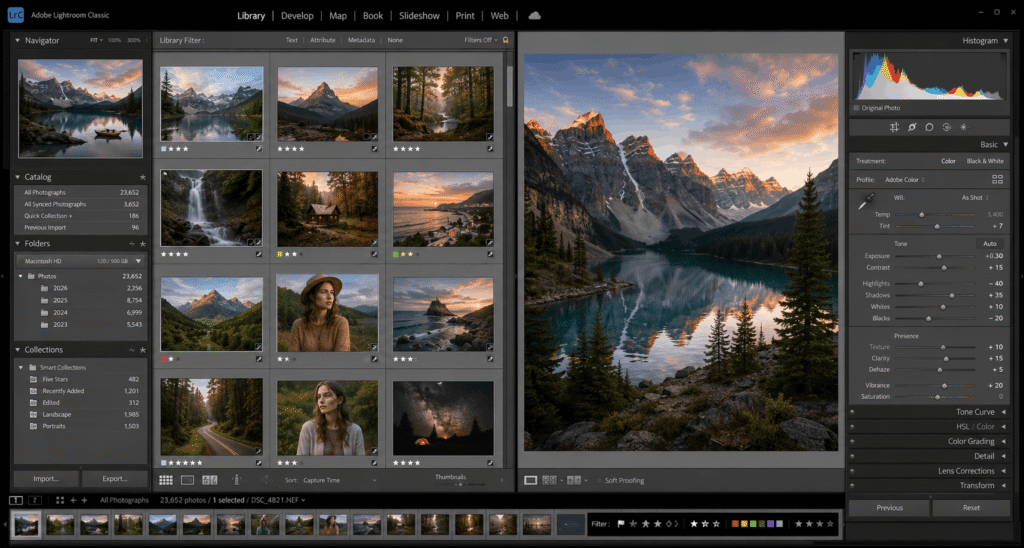
Best for: photographers who want organization, RAW editing, and cross-device sync in one place.
Platforms: Windows, Mac, iOS, Android, and web.
Why it stands out: non-destructive RAW editing keeps your originals untouched, and AI-powered masking can automatically detect subjects, skies, and even individual people, speeding up local adjustments that used to require manual selection.
Who should skip this: anyone who dislikes subscription pricing, since Lightroom requires an ongoing Adobe plan, and anyone whose main need is detailed pixel-level retouching rather than RAW processing.
Practical tip: Lightroom’s generative AI features run on a credit system tied to your plan, so heavy AI users should check their plan’s credit allowance before relying on those features for client work.
Adobe Photoshop
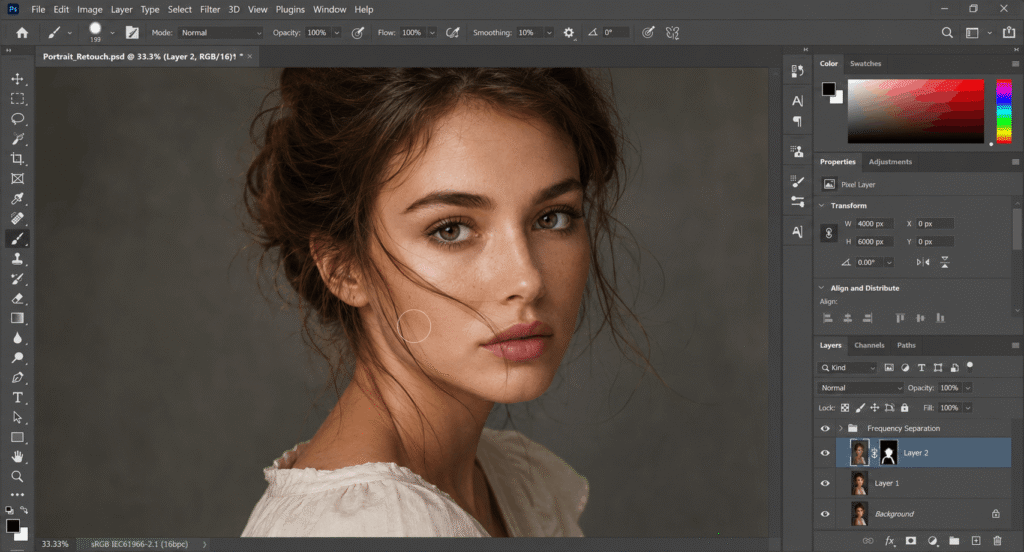
Best for: detailed retouching, compositing, and creative pixel-level editing.
Platforms: Windows, Mac, iOS, and web.
Why it stands out: tools like the Healing Brush, Content-Aware Fill, and Generative Fill remain difficult to fully replicate in competing software, and Photoshop’s plugin ecosystem is the deepest of any photo editor.
Who should skip this: anyone mainly processing RAW files in bulk, since Photoshop isn’t built for library management the way Lightroom or Capture One are, and anyone avoiding subscription costs.
Practical tip: bundling Photoshop with Lightroom through Adobe’s Photography Plan is generally the more affordable way to access both, rather than subscribing to Photoshop alone.
Affinity Photo
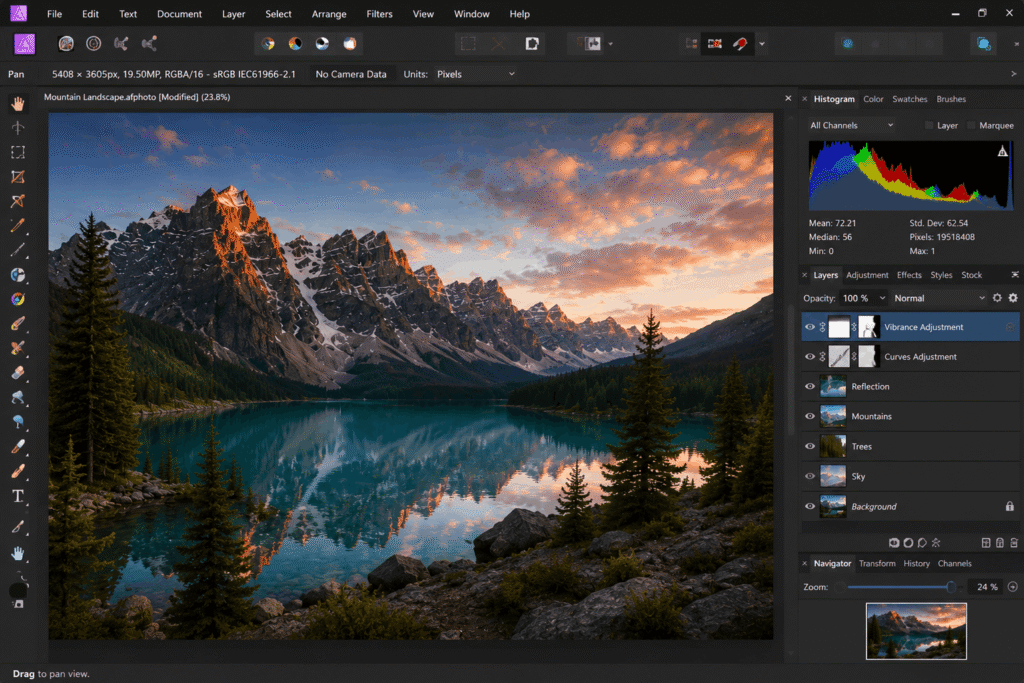
Best for: anyone wanting a subscription-free alternative to Photoshop for detailed photo editing.
Platforms: Windows and Mac, with an iPad version planned but not yet released.
Why it stands out: Affinity’s layer-based workflow feels familiar to Photoshop users, and since Canva’s 2025 relaunch, the core professional features are completely free, with only optional AI tools reserved for Canva Pro subscribers.
Who should skip this: anyone needing Photoshop’s specific plugin ecosystem or Adobe’s generative AI credit system, since Affinity’s toolset, while strong, isn’t a perfect one-to-one match. If you’re comparing Affinity against illustration-focused tools too, our guide to free drawing software covers that side of Affinity’s capabilities in more depth.
Practical tip: importing complex layered Photoshop files into Affinity can take noticeably longer than working with native Affinity files, so budget extra time for large legacy projects.
Capture One
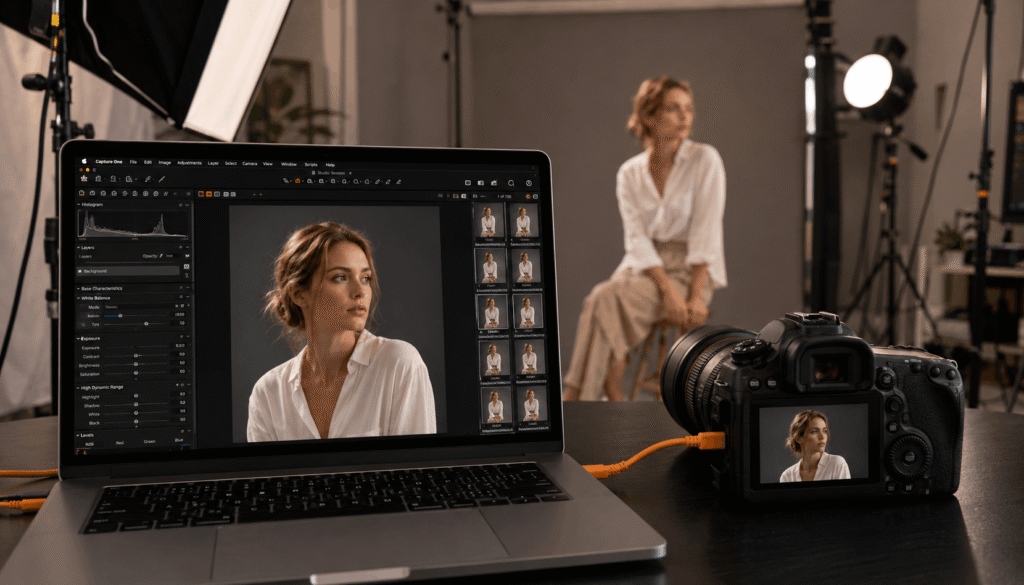
Best for: studio photographers and anyone doing tethered shooting.
Platforms: Windows and Mac.
Why it stands out: its tethered capture and color grading tools are generally considered stronger than Lightroom’s, making it a common choice for studio and commercial photography workflows.
Who should skip this: casual photographers who don’t need tethered shooting or advanced colour grading, since Capture One’s learning curve is steeper than Lightroom’s for basic editing.
Practical tip: Capture One can import an existing Lightroom catalog, which makes switching between the two less painful than starting a library from scratch.
Luminar Neo
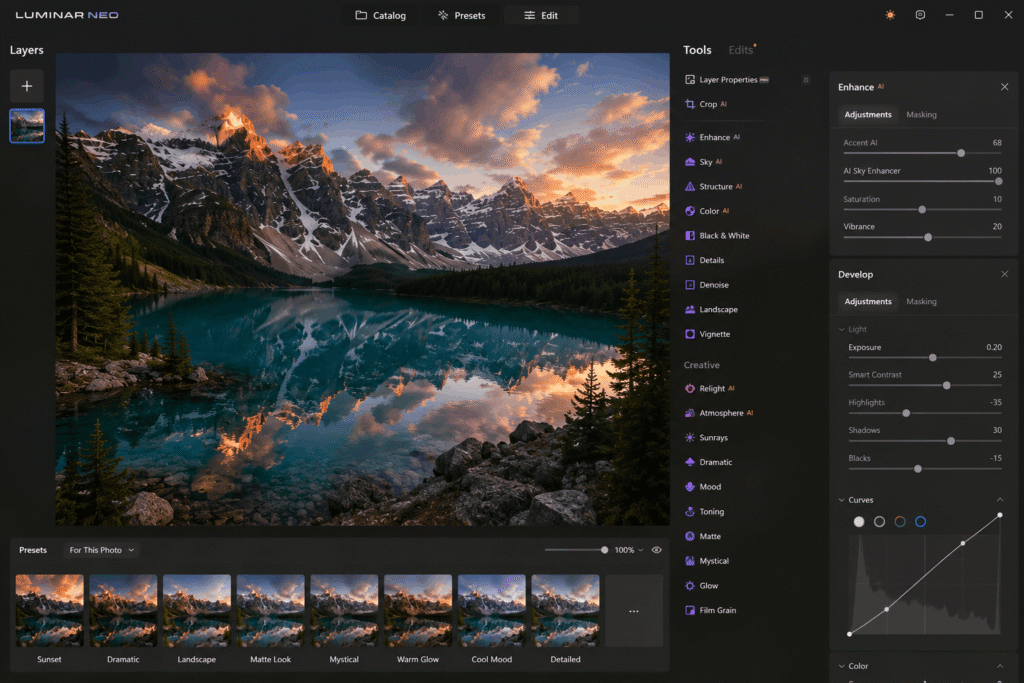
Best for: photographers wanting AI-assisted editing without committing to a subscription.
Platforms: Windows and Mac.
Why it stands out: it balances one-click AI tools with proper manual controls, and its one-time purchase model appeals to photographers tired of ongoing subscription costs. Pricing varies by promotions and version, so check the official website for current pricing before purchasing.
Who should skip this: anyone needing Lightroom or Capture One’s depth of library management for very large photo collections, since Luminar Neo is more editor-focused than catalogue-focused.
Practical tip: the selective clarity and colour tools let you apply local adjustments to specific elements, which is worth exploring beyond the more heavily marketed one-click AI filters.
DxO PhotoLab
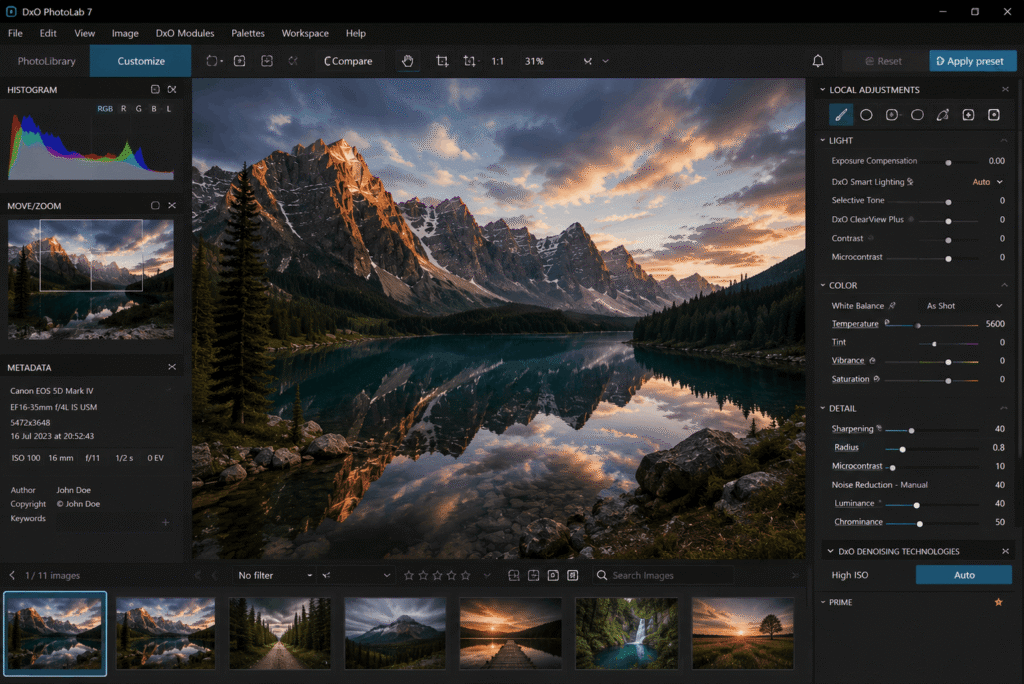
Best for: photographers prioritising RAW image quality and noise reduction above all else.
Platforms: Windows and Mac.
Why it stands out: its RAW processing and noise reduction are frequently cited as some of the strongest available, particularly useful for low-light or high-ISO photography.
Who should skip this: anyone wanting an all-in-one editing and organization suite, since DxO PhotoLab focuses more narrowly on RAW processing than broader creative editing.
Practical tip: DxO’s one-time purchase model positions it as a specialist tool best paired with a separate pixel editor for retouching work. Pricing varies by promotions and version, so check the official website before purchasing.
GIMP
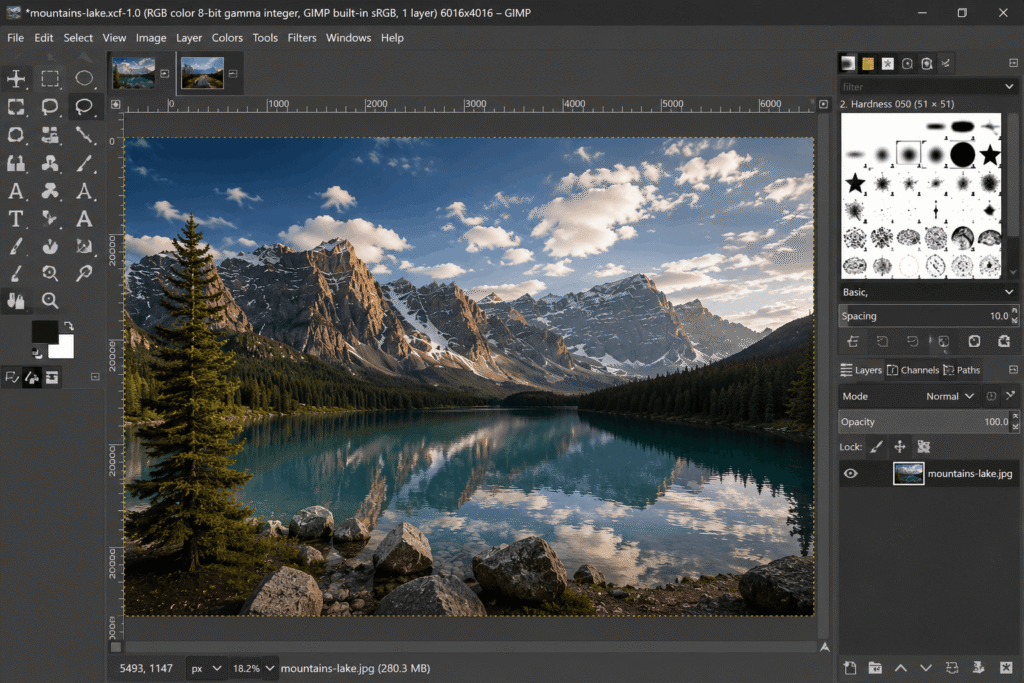
Best for: free, open-source pixel editing and photo manipulation.
Platforms: Windows, Mac, and Linux.
Why it stands out: GIMP’s editing capability approaches Photoshop is for photo manipulation, with scripting support for automating repetitive editing tasks.
Who should skip this: anyone wanting RAW-specific workflow tools or a gentler learning curve, since GIMP’s interface takes real time to learn well.
Practical tip: Pairing GIMP with darktable for RAW processing covers a similar workflow to Lightroom plus Photoshop, entirely for free.
darktable
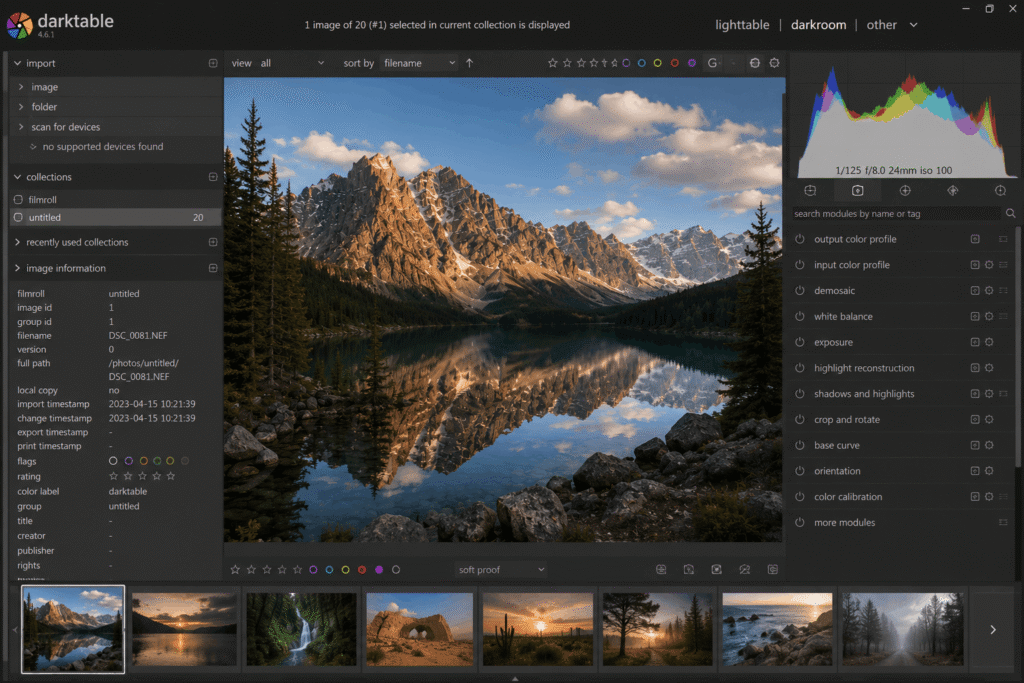
Best for: a free, open-source RAW processing workflow.
Platforms: Windows, Mac, and Linux.
Why it stands out: it offers non-destructive RAW editing and library organization comparable in concept to Lightroom, without any subscription cost.
Who should skip this: anyone wanting a gentler learning curve, since darktable’s node-based and module-heavy interface is less beginner-friendly than Lightroom’s.
Practical tip: Darktable’s interface differs enough from Lightroom that switching over benefits from following a dedicated tutorial rather than assuming your existing habits will transfer directly.
Photopea
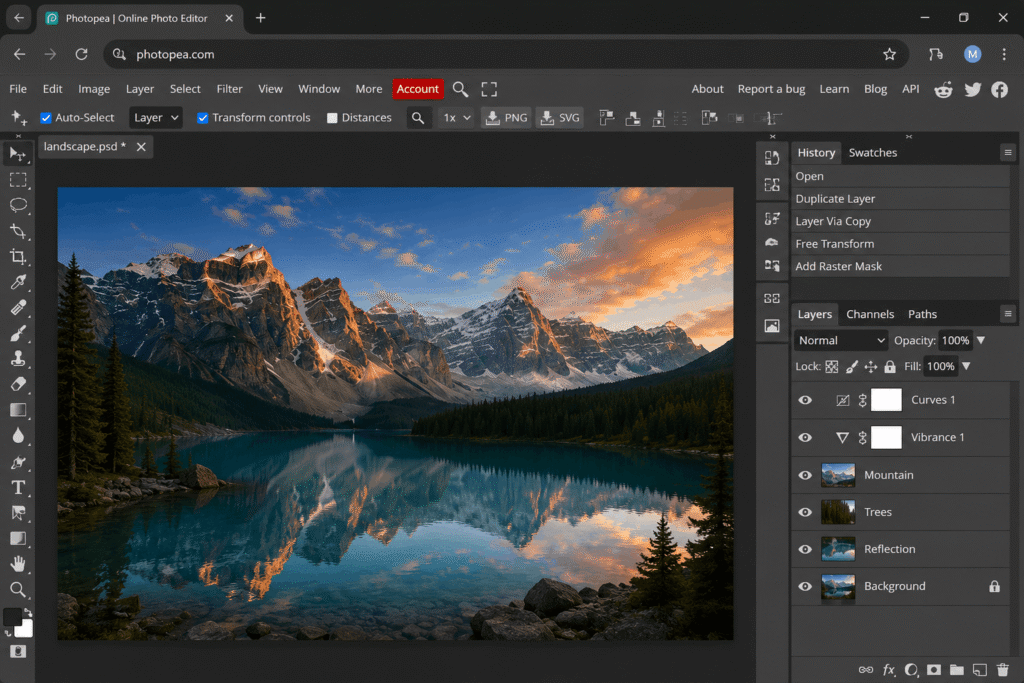
Best for: editing PSD files or doing quick pixel edits without installing software.
Platforms: any modern web browser.
Why it stands out: it opens and edits Photoshop PSD files directly in the browser, which is genuinely useful when you need to make a quick edit on a computer without Photoshop installed.
Who should skip this: anyone doing heavy, sustained editing work, since a browser-based tool generally can’t match a dedicated desktop application for performance on large files.
Practical tip: Photopea’s interface deliberately mimics Photoshop’s layout, so existing Photoshop users can generally start using it productively within minutes.
Snapseed
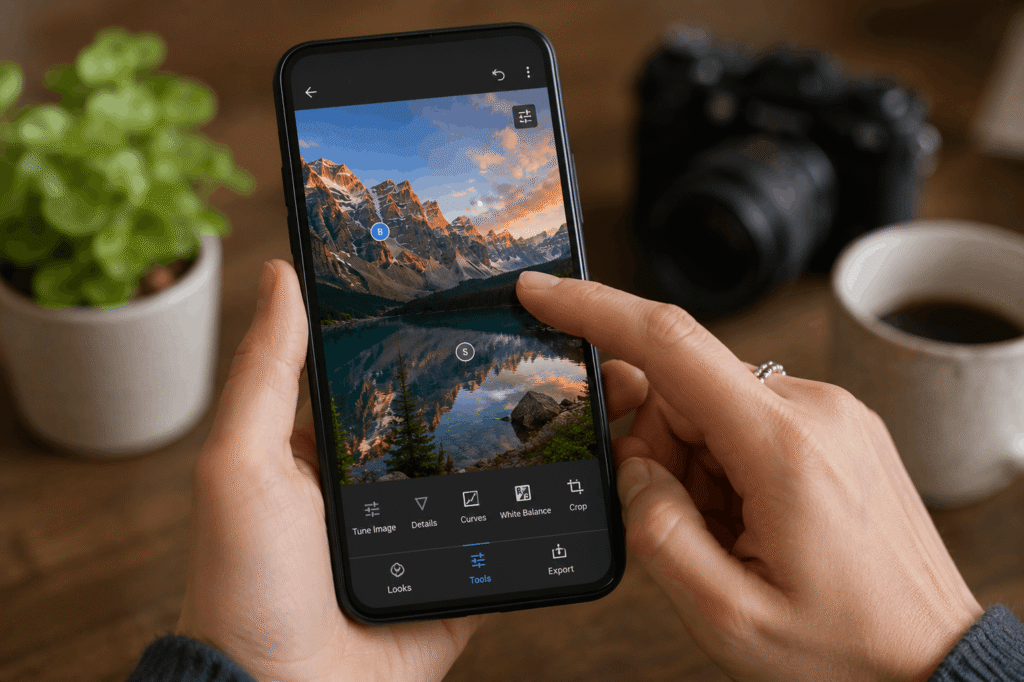
Best for: editing directly on a phone.
Platforms: iOS and Android.
Why it stands out: it remains one of the strongest free mobile editors, with selective adjustment tools that go beyond typical filter-based mobile apps.
Who should skip this: anyone needing desktop-level precision or RAW library management, since Snapseed is built specifically around mobile, single-image editing.
Practical tip: the selective control points feature lets you apply adjustments to a specific area without masking manually, a genuinely useful shortcut on a small mobile screen.
Hardware Requirements for Photo Editing
Photo editing software, especially RAW processing, benefits from a fast processor, plenty of RAM, and an SSD for storage. Sixteen gigabytes of RAM is generally considered a minimum for comfortable RAW editing, with 32GB recommended for larger files or heavier batch work. A dedicated graphics card also helps with performance in tools that use GPU acceleration for AI features and rendering. A colour-accurate monitor becomes increasingly important if you’re printing photographs or delivering work to clients, since an inaccurate display can lead to edits that look wrong once viewed elsewhere.
A New Option Worth Watching: DaVinci Resolve’s Photo Page
DaVinci Resolve 21, released in June 2026, added a dedicated photo page for editing still images, alongside its established video editing tools. The free version includes node-based RAW editing, image organization, and the ability to import an existing Lightroom catalog. It’s a genuinely new addition to the space, so it’s worth watching as it develops rather than relying on it as a primary editor just yet, particularly since its more advanced AI tools are reserved for the paid Studio version.
Common Mistakes When Choosing Photo Editing Software
- Confusing RAW processors with pixel editors: picking Lightroom when you actually need Photoshop-style retouching, or vice versa, leads to real workflow frustration.
- Underestimating hardware requirements: RAW-heavy workflows can run poorly on underpowered hardware regardless of which software you choose.
- Committing to a subscription before testing alternatives: most subscription tools offer free trials, and testing a one-time purchase or free alternative first can save real money long-term.
- Ignoring platform compatibility: confirming a tool supports your specific operating system, especially for tools without a full iPad or mobile version, avoids wasted setup time.
- Assuming the most expensive tool is automatically the best fit: the right software depends on your actual workflow, not the highest price tag.
Frequently Asked Questions
What is the best photo editing software for beginners?
Adobe Lightroom is one of the easiest starting points for beginners, since it pairs guided RAW editing with automatic organization and a free mobile app.
What is the best free photo editing software?
Affinity Photo is the strongest free option overall since Canva’s 2025 relaunch, with GIMP, darktable, and Photopea as strong free alternatives depending on whether you need pixel editing, RAW processing, or browser-based editing.
Is Lightroom or Photoshop better?
They serve different purposes. Lightroom is built for RAW processing and organizing large photo libraries, while Photoshop is built for detailed, pixel-level retouching and compositing. Many photographers use both together.
Do I need a subscription for good photo editing software?
No. One-time-purchase tools like Luminar Neo, DxO PhotoLab, and ON1 Photo RAW, along with free tools like Affinity Photo and GIMP, can cover most photo editing needs without an ongoing subscription.
What computer specs do I need for photo editing?
A fast processor, at least 16GB of RAM, and an SSD for storage are generally recommended, with 32GB of RAM suggested for heavier RAW or batch editing workflows.
Final Recommendation
If you want the most complete, well-supported option and don’t mind a subscription, Adobe Lightroom paired with Photoshop covers both RAW processing and detailed retouching. If you want to avoid subscriptions entirely, Affinity Photo now covers most pixel-editing needs for free, paired with darktable or DxO PhotoLab for RAW processing. If you’re a studio photographer doing tethered shooting, Capture One is worth the steeper learning curve.
Conclusion
The best photo editing software depends on whether your actual work is RAW processing and organization or detailed pixel-level editing, since trying to force one tool into the wrong role causes more frustration than the software itself. Match the tool to your real workflow, factor in whether a subscription or one-time cost fits your budget better, and confirm your hardware can handle RAW-heavy work before committing to a specific tool.
Sources
- Adobe, official pricing and feature documentation for Lightroom and Photoshop
- Canva Affinity official product and pricing information
- Capture One, DxO, Skylum (Luminar Neo), and ON1 official vendor sites for pricing and features
- Google Snapseed, official app documentation
- Independent software review and technology news coverage, cross-referenced for consistency across multiple sources