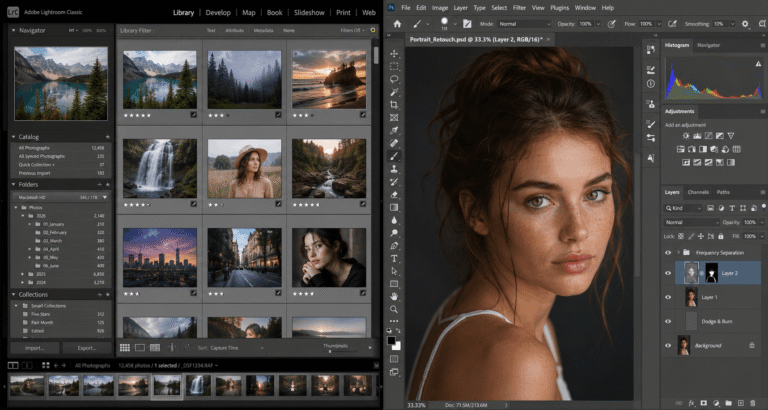
Best Free Drawing Software in 2026
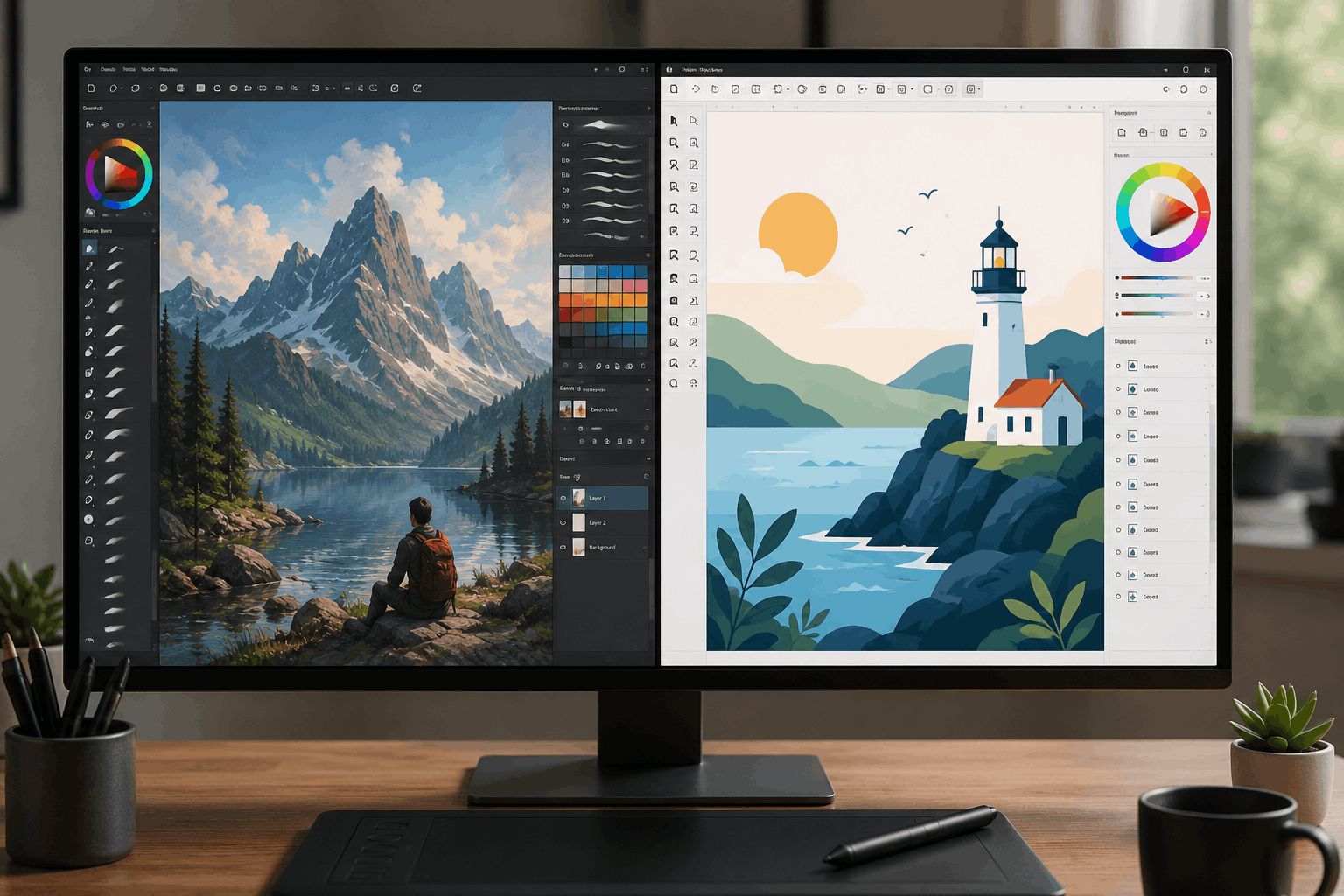
Free drawing software has closed most of the gap with paid tools like Photoshop and Illustrator, and one recent shift makes this an especially good time to look: Affinity became free following Canva’s October 2025 rollout of a new, unified Affinity application, significantly changing the landscape for professional creative software. According to Canva’s own announcement, more than a million people signed up within four days of the launch.
This guide covers the best free drawing software across painting, vector work, photo editing, and comics, organized by what each tool actually does well, along with platform support for Windows, Mac, Linux, and tablets.
Who this guide is for: beginners picking their first drawing program, hobbyists comparing free options against a Photoshop subscription, and digital artists deciding between raster painting and vector tools.
Last verified: July 2026.
Quick Answer
Krita is the strongest all-around free drawing software for digital painting and illustration. GIMP handles photo editing and raster graphics. Inkscape covers vector work. Affinity, now completely free, can serve as an alternative to Photoshop, Illustrator, and InDesign for many designers and illustrators on Windows and Mac. The right choice depends on whether you’re painting, editing photos, or building vector graphics.
| If You Need… | Choose… |
| Painting | Krita |
| Photo editing | GIMP |
| Vector graphics | Inkscape |
| Comics | MediBang Paint |
| Mobile drawing | ibisPaint |
| Adobe alternative | Affinity |
How We Chose These Tools
Every tool here was evaluated against the same criteria, so the list reflects genuine capability rather than just popularity.
- Genuinely free, not a limited trial or feature-gated demo
- Active development and community support
- A mix of painting, vector, photo editing, and beginner-friendly options
- Platform coverage across Windows, Mac, Linux, and mobile or tablet where relevant
Which Software Should You Choose?
- Never used drawing software before? Start with Autodesk Sketchbook.
- Want to focus on digital painting? Krita.
- Need an Adobe Creative Cloud alternative? Affinity.
- Designing logos or vector graphics? Inkscape.
- Drawing comics or manga? MediBang Paint or ibis Paint.
- Working on an older or lower-spec PC? FireAlpaca.
Is This Drawing Software or an AI Image Generator?
If you want to control every line and build actual drawing skill, the tools in this guide are what you need. AI image generators like Midjourney, DALL-E, and Stable Diffusion produce images from text prompts, which is a genuinely different category. They’re useful for brainstorming or reference images, but they don’t teach drawing skills or give you line-by-line control over the artwork the way traditional drawing software does.
Do You Need a Drawing Tablet?
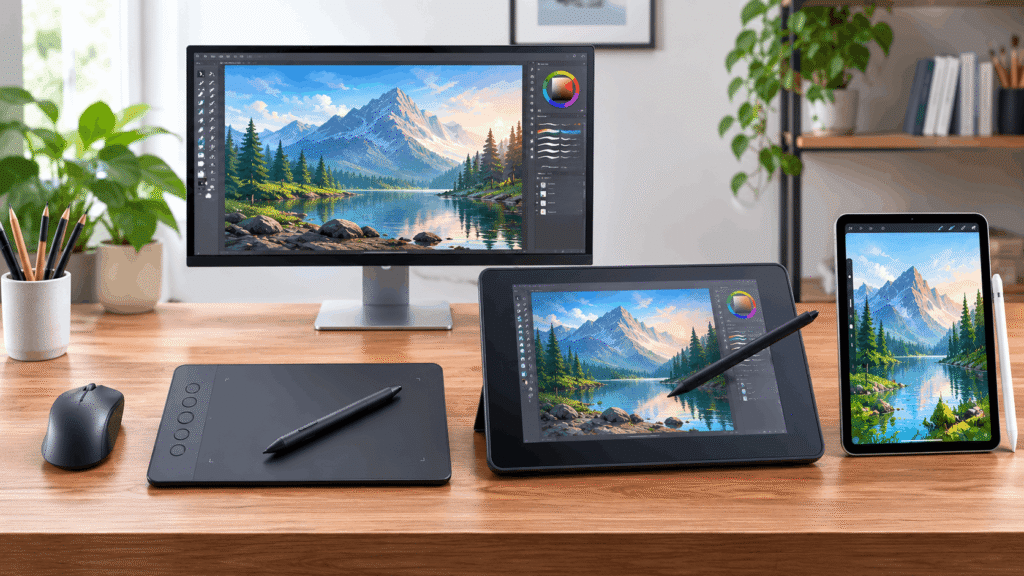
Not necessarily, though it depends on what you’re drawing. A mouse works fine for basic photo editing or vector work with straight lines and shapes, but freehand illustration is truly difficult without a pen-based input. A pen tablet, which you draw on while looking at your monitor, is the most affordable entry point. A display tablet, with a screen built in, lets you draw directly on the image and costs more. An iPad with a compatible stylus works well for apps that support it, like Autodesk Sketchbook or MediBang Paint. Beginners unsure how much they’ll stick with digital art often start with an affordable pen tablet before upgrading.
Quick Comparison: Best Free Drawing Software
| Software | Platform | Best For | Beginner-Friendly |
| Krita | Windows, Mac, Linux | Digital painting and illustration | Moderate |
| Affinity | Windows, Mac | Full creative suite replacement | Moderate |
| GIMP | Windows, Mac, Linux | Photo editing and raster graphics | Low |
| Inkscape | Windows, Mac, Linux | Vector illustration and logos | Low |
| Autodesk Sketchbook | Windows, Mac, iOS, Android | Beginners and quick sketching | High |
| MediBang Paint | Windows, Mac, iOS, Android | Comics and manga | High |
| ibisPaint | iOS, Android | Comics, manga, mobile drawing | High |
| FireAlpaca | Windows, Mac | Lightweight painting on older hardware | High |
| MyPaint | Windows, Mac, Linux | Simple, distraction-free painting | Moderate |
| Paint.NET | Windows | Basic photo editing and simple graphics | High |
Platform support and features change as tools update, so confirm current details on each tool’s official site before committing to one.
Best Free Drawing Software by Category
- Best overall: Krita
- Best Adobe Creative Cloud alternative: Affinity
- Best for photo editing: GIMP
- Best for vector graphics: Inkscape
- Best for beginners: Autodesk Sketchbook
- Best for comics and manga: MediBang Paint and ibis Paint
- Best for low-end hardware: FireAlpaca
Best Free Drawing Software, Reviewed
Krita
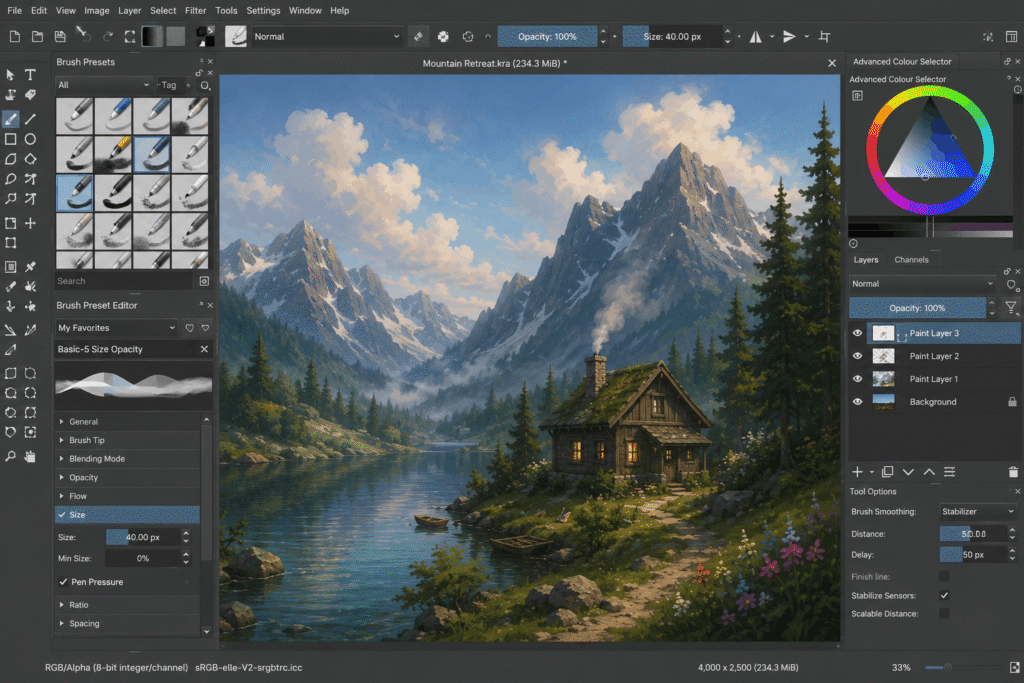
Best for: digital painting, illustration, comics, and concept art.
Platforms: Windows, Mac, and Linux, with a paid Steam version available purely for auto-updates.
Why it stands out: Krita is popular among digital painters because of its highly customizable brush engine, real-time stabilizers for smoother line work, HDR canvas support, and strong PSD compatibility with Photoshop files, alongside support for animation and comics.
Who should skip this: anyone needing precise vector graphics or heavy photo editing, since Krita is built specifically for painting rather than those workflows.
Practical tip: the wraparound mode is particularly useful for artists creating seamless patterns or textures, a feature many competing free tools don’t offer.
Affinity
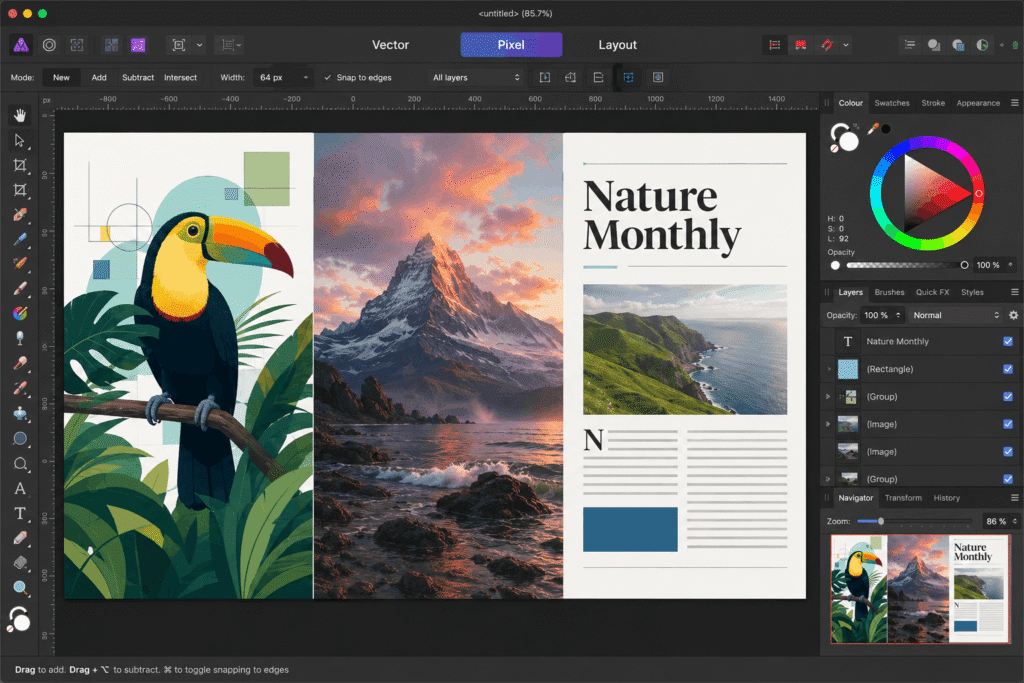
Best for: anyone wanting a creative suite that can serve as an alternative to Photoshop, Illustrator, and InDesign at zero cost for many creative workflows.
Platforms: Windows and Mac, with an iPad version planned for 2026 but not yet released.
Why it stands out: in October 2025, Canva relaunched Affinity as a single unified app, merging what were previously three separate paid products, Affinity Photo, Designer, and Publisher, into one free application covering photo editing, vector design, and page layout. The core professional feature set is free, though a free Canva account is required to download it, and AI-specific tools like generative fill are reserved for Canva Pro subscribers.
Who should skip this: anyone specifically needing After Effects-style motion graphics, iPad support right now, or deep Photoshop plugin compatibility, since Affinity doesn’t cover those.
Practical tip: files saved in the new unified Affinity format aren’t fully backward compatible with the older separate Affinity apps, so keep that in mind if you’re collaborating with someone still on an older version.
GIMP
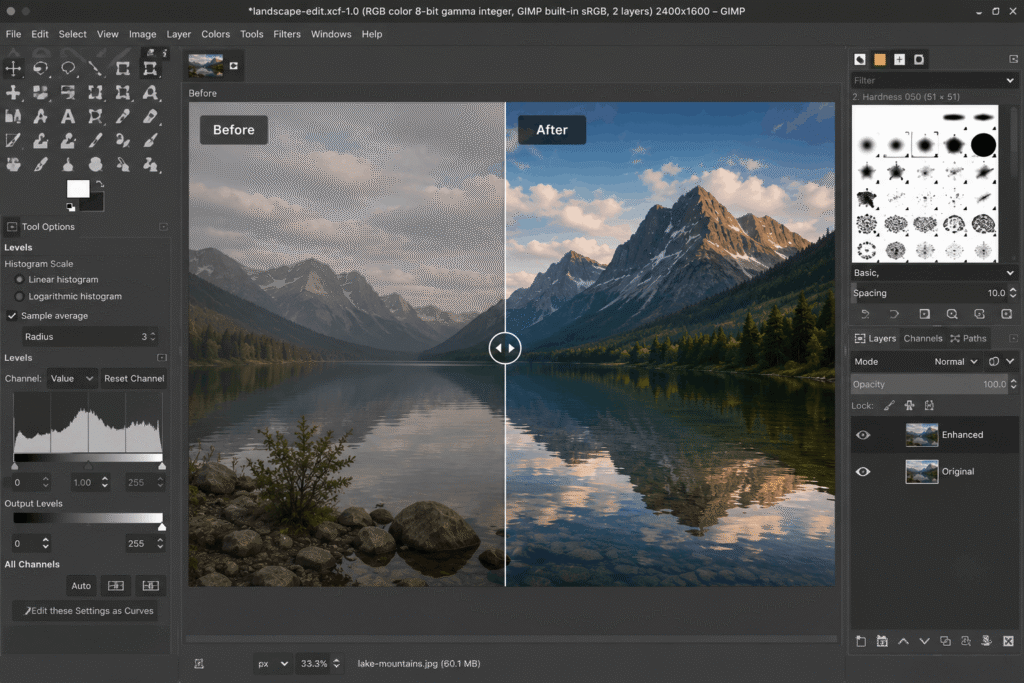
Best for: photo editing and general raster graphic manipulation.
Platforms: Windows, Mac, and Linux.
Why it stands out: GIMP’s editing capability approaches Photoshop’s for photo manipulation, and its scripting support allows automation for repetitive editing tasks that most free tools don’t offer.
Who should skip this: anyone primarily wanting to paint or illustrate from scratch, since GIMP is oriented toward editing existing images rather than painting.
Practical tip: GIMP’s steep learning curve is a common complaint, so budgeting time for tutorials early on tends to pay off more than trying to learn it purely through trial and error.
Inkscape
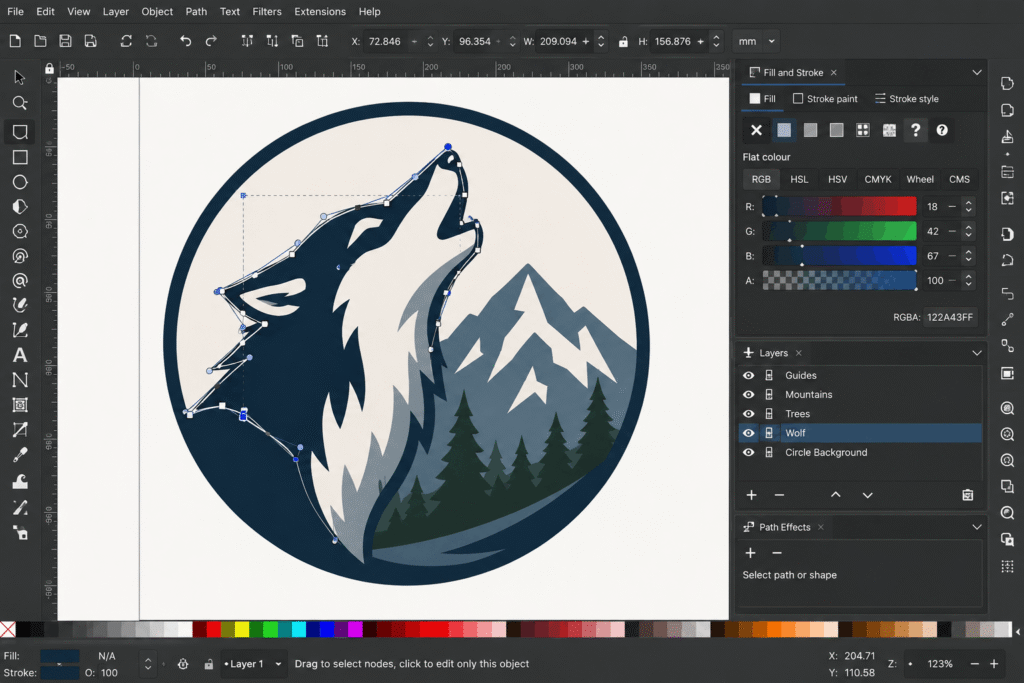
Best for: vector illustration, logos, and scalable graphics.
Platforms: Windows, Mac, and Linux.
Why it stands out: Inkscape handles SVG-focused vector workflows that would otherwise require an Illustrator subscription, and it remains actively developed with a strong community contributing plugins and extensions.
Who should skip this: anyone wanting to paint or sketch freely, since vector tools work fundamentally differently from raster painting programs like Krita.
Practical tip: Inkscape’s node editing tools take longer to learn than most raster painting programs, so starting with simple shapes before attempting complex illustrations tends to build skill faster.
Autodesk Sketchbook
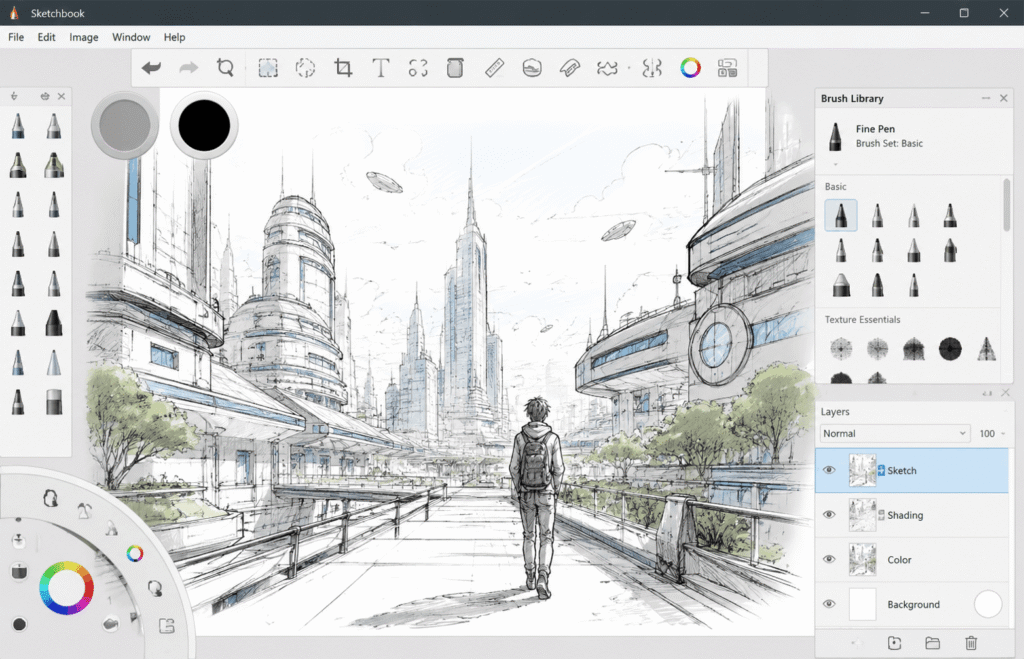
Best for: beginners and quick, low-friction sketching.
Platforms: Windows, Mac, iOS, and Android.
Why it stands out: its clean, minimal interface stays out of the way for artists who want to sketch quickly, and it includes a particularly useful ruler and symmetry tool set for a free program.
Who should skip this: professional illustrators needing advanced brush customization or heavy layer management, since Sketchbook is intentionally simpler than tools like Krita.
Practical tip: the predictive stroke feature, which smooths lines as you draw, is especially helpful for beginners still building steady hand control.
MediBang Paint
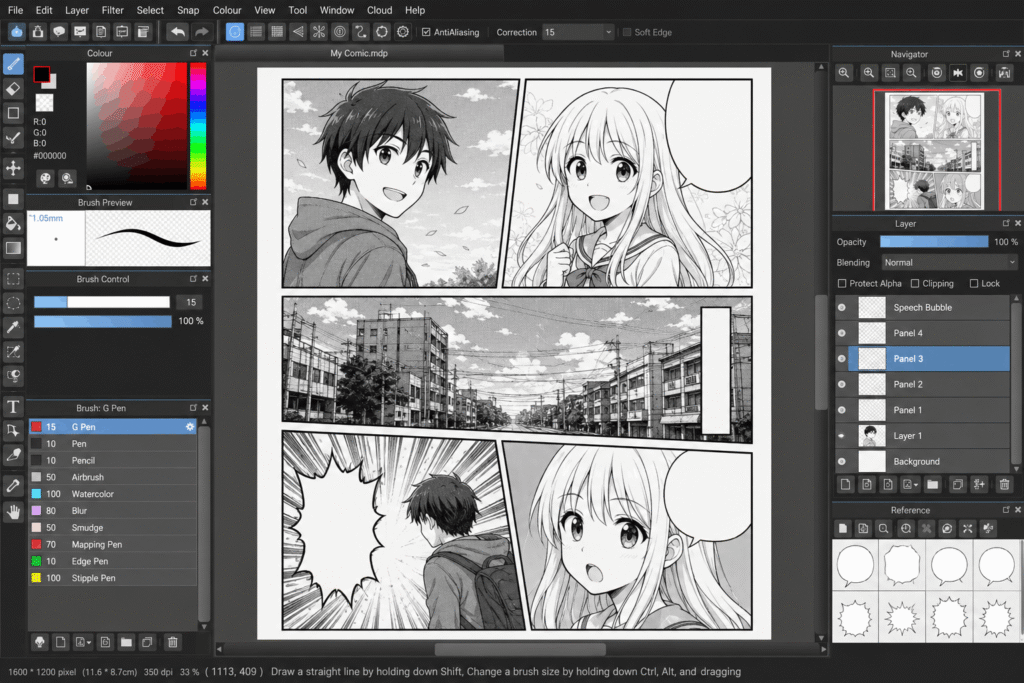
Best for: comic and manga artists specifically.
Platforms: Windows, Mac, iOS, and Android.
Why it stands out: it includes comic-specific tools like panel templates and speech bubble presets that general-purpose drawing software doesn’t offer out of the box.
Who should skip this: artists focused purely on painting or photo editing, since MediBang’s tools are specifically optimized for comic and manga workflows.
Practical tip: MediBang syncs projects across devices through its own cloud service, which is useful for artists who sketch on a phone and finish work on a desktop.
ibisPaint
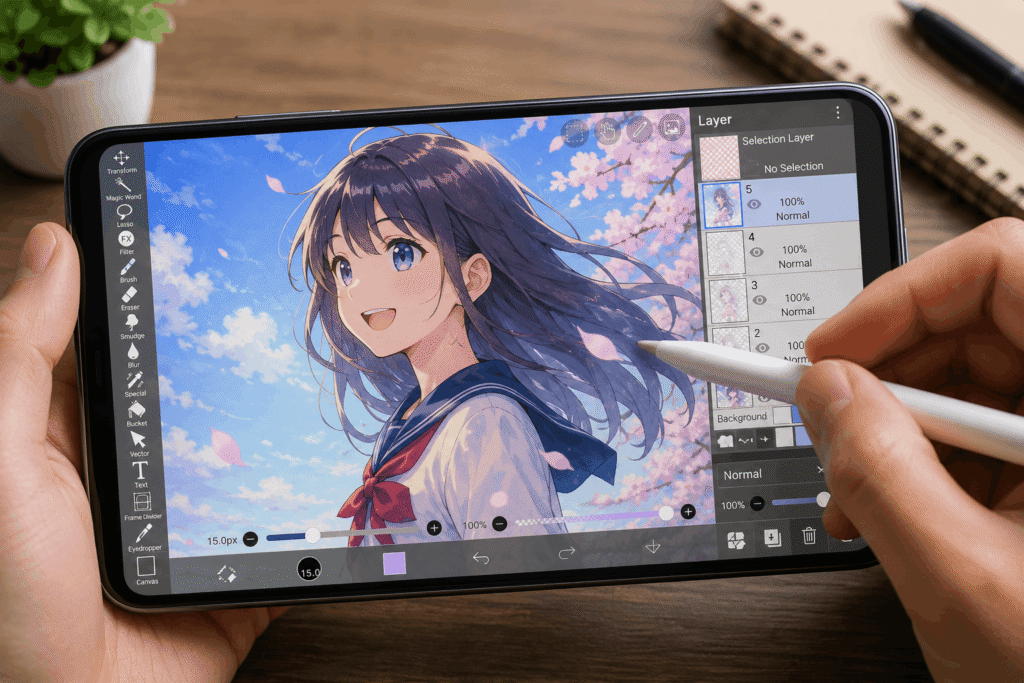
Best for: mobile-first artists, especially anime and manga illustrators on iOS and Android.
Platforms: iOS and Android.
Why it stands out: it’s one of the most widely used mobile drawing apps globally, particularly popular in anime and manga communities, and it includes built-in stroke-by-stroke replay recording that lets artists share their drawing process.
Who should skip this: anyone wanting a desktop-first workflow, since ibisPaint is designed specifically around mobile and tablet touch input rather than a mouse and keyboard setup.
Practical tip: the free version includes ads and some paid stamps or materials, so budget for occasional prompts to upgrade if you want every feature unlocked.
FireAlpaca
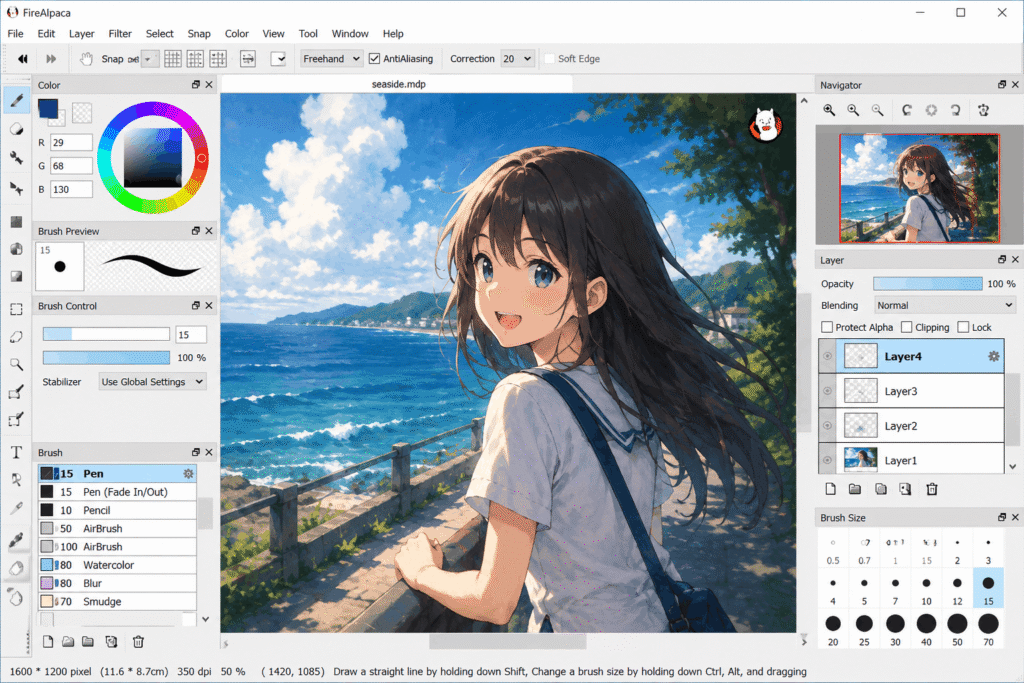
Best for: older or lower-spec computers that struggle with heavier software.
Platforms: Windows and Mac.
Why it stands out: it runs smoothly on modest hardware, where more feature-heavy programs like Krita or GIMP can lag, without sacrificing core painting functionality.
Who should skip this: artists needing advanced features like extensive scripting or professional color management, since FireAlpaca trades some depth for its lightweight footprint.
Practical tip: its simple interface makes FireAlpaca a reasonable starting point for kids or complete beginners who might find Krita’s fuller feature set overwhelming at first.
What About Animation? Blender’s Grease Pencil
If your goal is animation rather than static illustration, Blender’s Grease Pencil tool deserves consideration alongside the drawing-focused software above. It lets you draw directly in 2D within Blender’s full 3D environment, blending 2D animation with 3D scenes in a way none of the tools above are built for. It’s a distinctly different tool for a different goal, so it’s worth a separate look rather than a direct comparison to the illustration-focused software here.
Desktop vs. Mobile and Tablet Options
Most of the tools above run on desktop, but several, including Autodesk Sketchbook, MediBang Paint, and ibis Paint, also support iOS and Android for drawing on a tablet or phone. Desktop software generally offers larger canvases, more advanced file support, and better performance for complex work, while mobile and tablet apps trade some of that depth for touch controls and portability. If you’re deciding between the two, consider where you’ll actually draw most often rather than picking based on features alone.
Common Mistakes When Choosing Drawing Software
- Picking based on feature lists alone: a tool with more features isn’t automatically the right fit if it doesn’t match your actual workflow, whether that’s painting, vector work, or photo editing.
- Ignoring platform compatibility: confirming a tool actually supports your operating system before investing time learning it saves real frustration later, especially with Affinity’s iPad version still not released.
- Underestimating the learning curve: tools like GIMP and Inkscape are powerful but take real time to learn well, so budget for a learning period rather than expecting immediate results.
- Confusing AI generators with drawing software: if you want to build actual drawing skill, an AI image generator won’t get you there the way traditional software does.
- Overlooking free alternatives to paid staples: Affinity’s shift to free in 2025 means some artists are still paying for tools they could now get for free.
Frequently Asked Questions
What is the best free drawing software overall?
Krita is widely considered the strongest all-around free option for digital painting and illustration, thanks to its brush engine and active development.
Is Affinity really completely free now?
Yes. Affinity became completely free in October 2025 as part of Canva’s relaunch of a single, unified Affinity application, covering photo editing, vector design, and page layout on Windows and Mac. A free Canva account is required, and AI-specific features are reserved for Canva Pro subscribers.
What is the best free drawing software for beginners?
Autodesk Sketchbook and FireAlpaca are both commonly recommended for beginners, thanks to their simpler interfaces compared to more feature-dense tools like Krita or GIMP.
Can I use free drawing software instead of Photoshop?
For most users, yes. The combination of Affinity, Krita, and GIMP covers the large majority of what Adobe Creative Cloud offers, though some specific workflows like After Effects-style motion graphics remain gaps.
Is Krita better than GIMP?
They’re built for different purposes. Krita is designed for painting and illustration, while GIMP is designed for photo editing and raster image manipulation, so the better choice depends on which of those two tasks you’re actually doing.
Which free drawing software is closest to Photoshop?
Affinity is the closest overall match, since it offers many comparable photo-editing tools alongside vector and layout tools. Krita and GIMP each cover parts of Photoshop’s functionality, painting and photo editing, respectively, without matching its full feature set individually.
Is free drawing software good enough for professional work?
Yes, for many workflows. Professional illustrators, concept artists, and comic creators increasingly publish commercial work made entirely with free tools like Krita, GIMP, and Inkscape.
Final Recommendation
If you want one all-around tool for painting and illustration, start with Krita. If you want a genuinely free replacement for the full Adobe suite on Windows or Mac, Affinity is the strongest option available in 2026. If you’re a complete beginner unsure where to start, Autodesk Sketchbook’s simpler interface is easier to pick up than more feature-heavy alternatives.
Conclusion
Free drawing software in 2026 covers nearly every creative workflow, from painting and vector illustration to full photo editing, without requiring a paid subscription. Match the tool to the kind of work you actually do, whether that’s painting, vector graphics, photo editing, or comics, instead of simply choosing the most popular name, and take advantage of Affinity’s recent shift to free if you need a broader creative suite on desktop.
Sources
- Canva’s official newsroom announcement on Affinity becoming free
- Krita Foundation, GIMP, and Inkscape official project documentation
- Independent software review and technology news coverage, cross-referenced for consistency across multiple sources